 Markish
macOS / Windows · Free for 30 days, every feature
All of your Markdown,
edited as it looks.
Tables included, without wrestling with the syntax.
When you would rather write the Markdown itself, use the text editor beside it.
Whichever side you type on, both stay in sync in real time.
Coming soon to the App Store and the Microsoft Store.
Try the demo in your browser (no install) →
macOS / Windows · VS Code extension included · Free for 30 days
Not a preview. You edit it directly.
In most editors the right-hand side is read-only, so the moment you want to fix the syntax you are back on the left. In Markish you can edit both. Fill in the cells of a table in the visual editor, then rewrite a link's URL in the text editor.
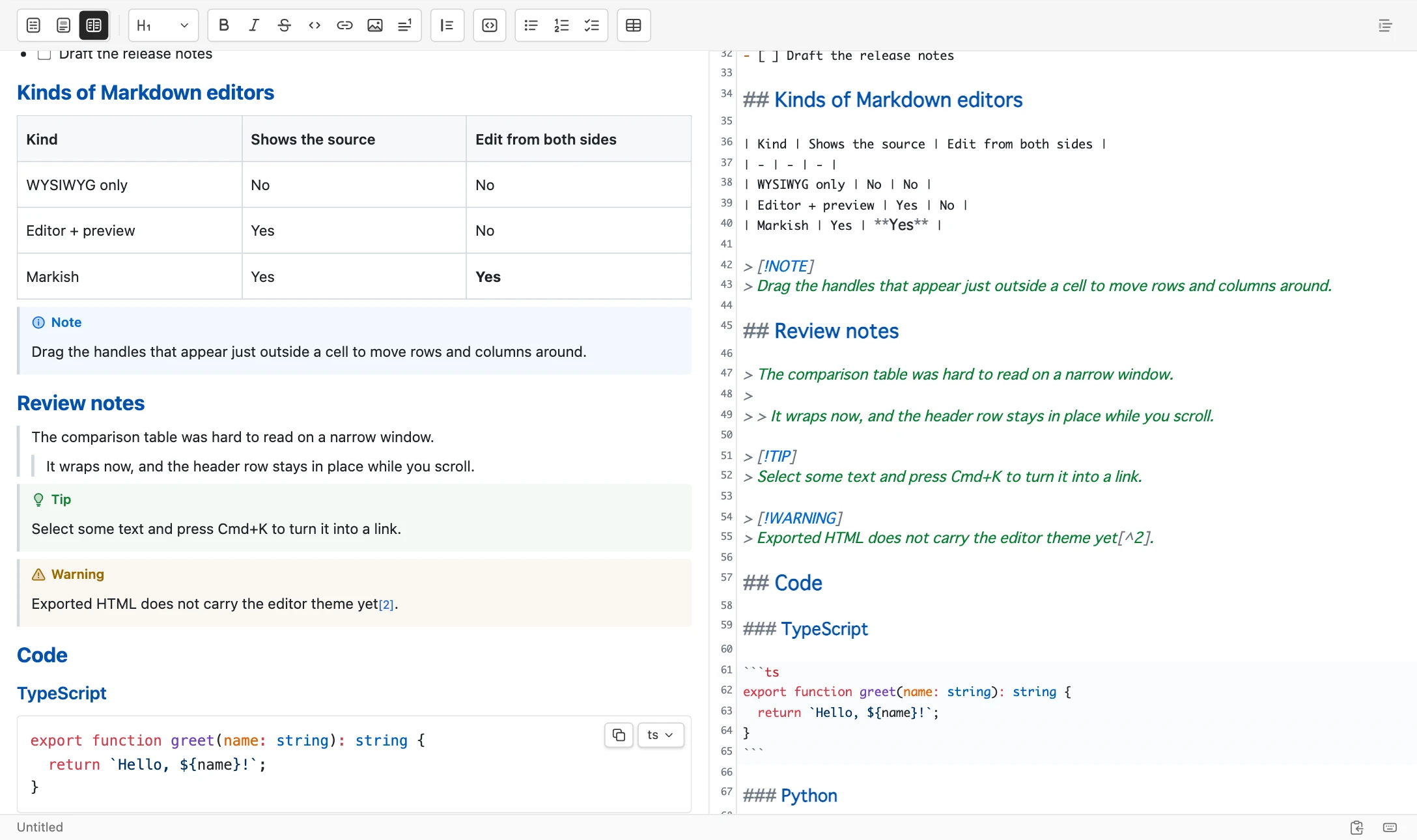
- What you type appears on the other side as you type it
- Scrolling is matched block by block, so you keep your place even in a long document
- Undo works across modes. Moving a cell in the visual editor and typing in the text editor share one history
- Switching modes keeps your cursor and your scroll position
- Updates happen on every keystroke. There is no preview to wait for
VS Code extension
It works inside VS Code too.
When you want to fix the README in the middle of writing code, you do not have to switch apps. Right-click a .md file and choose "Open with Markish". The colors follow your VS Code theme.
Markish for VS Code comes with the app. It is not sold separately. There is a one-time step where you authorize it from the desktop app.
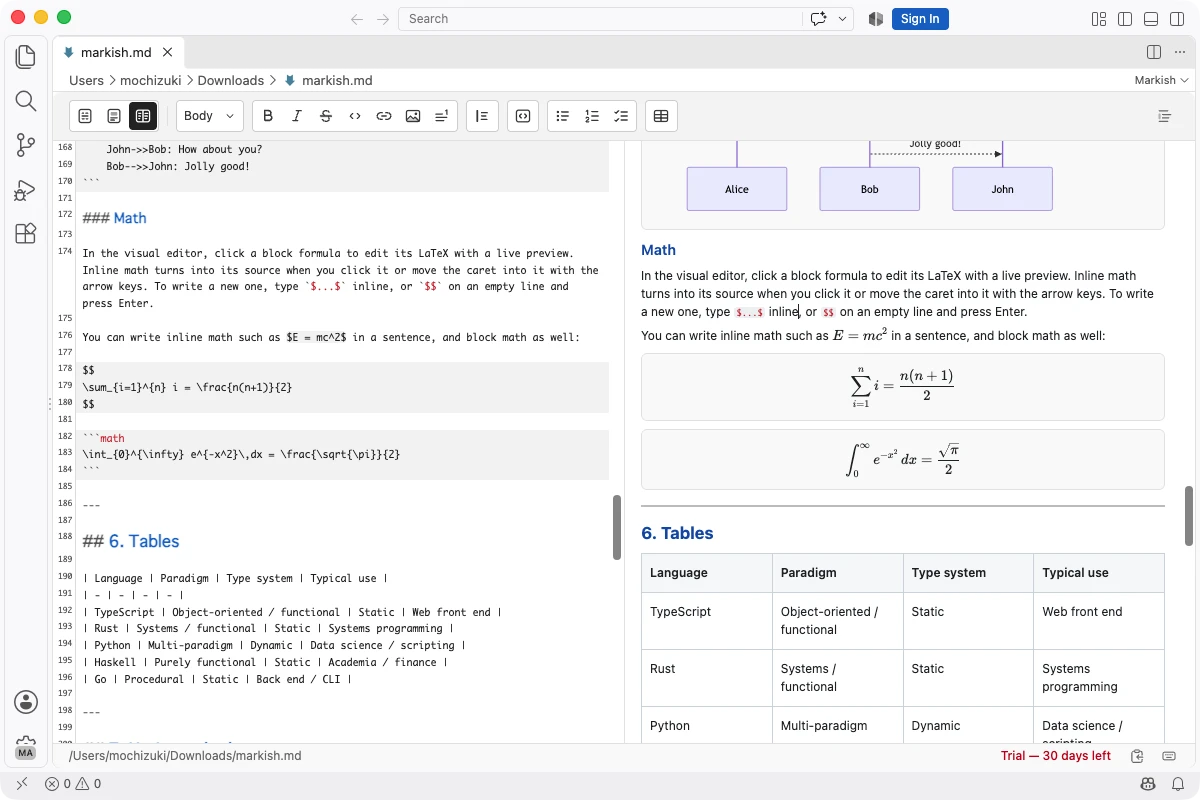
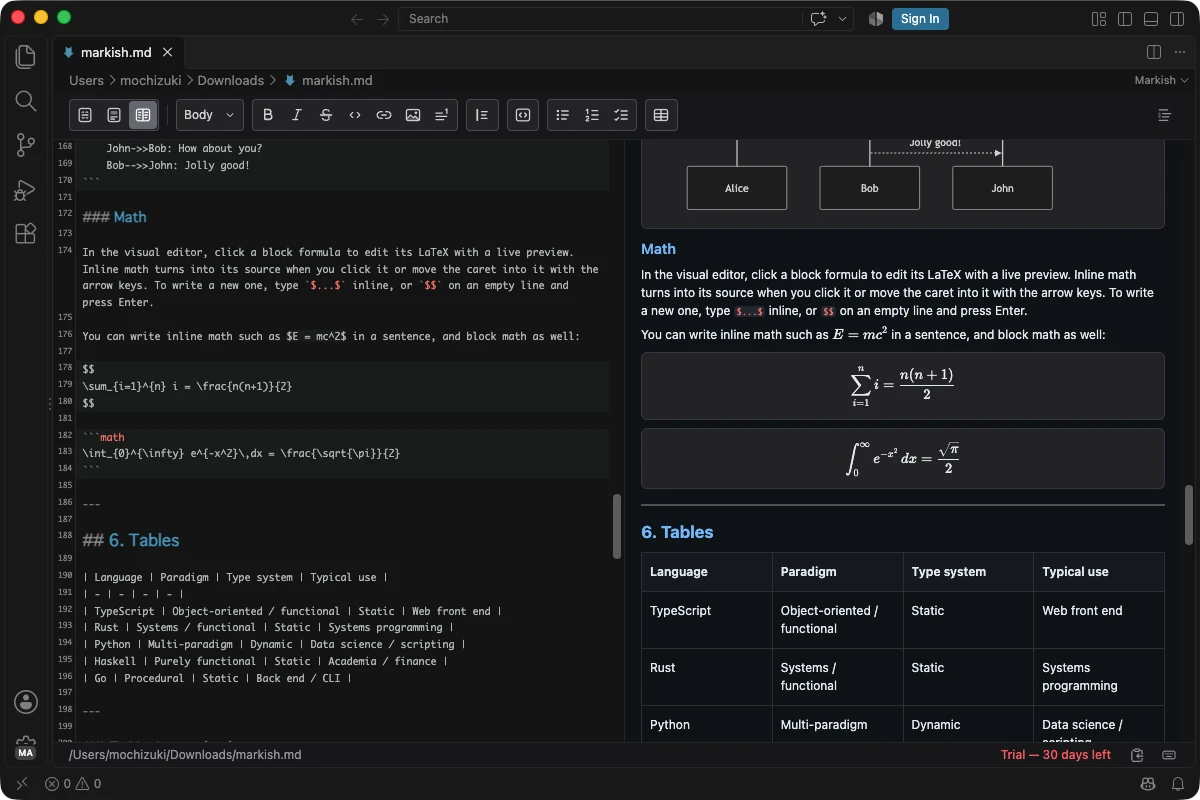
Set up however you like to write.
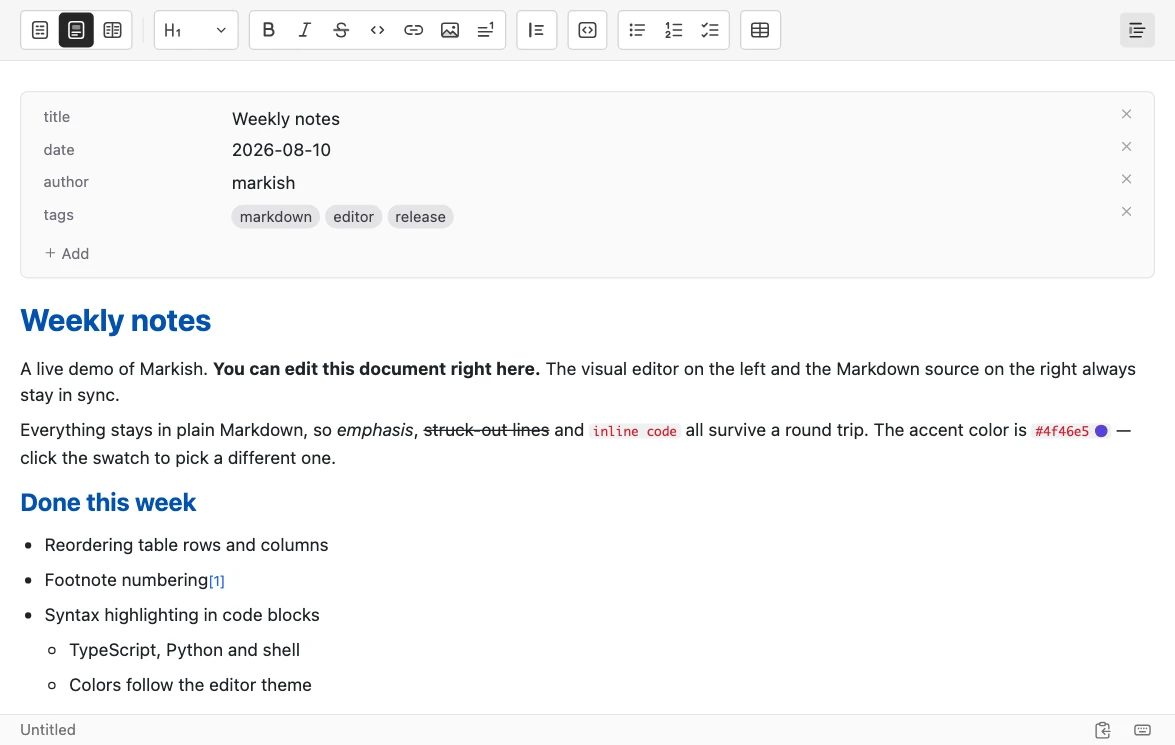
The visual editor while you are writing prose, the text editor when you are fixing footnotes and links, and split view when you are working through review comments. Switching never moves your place. Colors and fonts adapt to your setup as well.
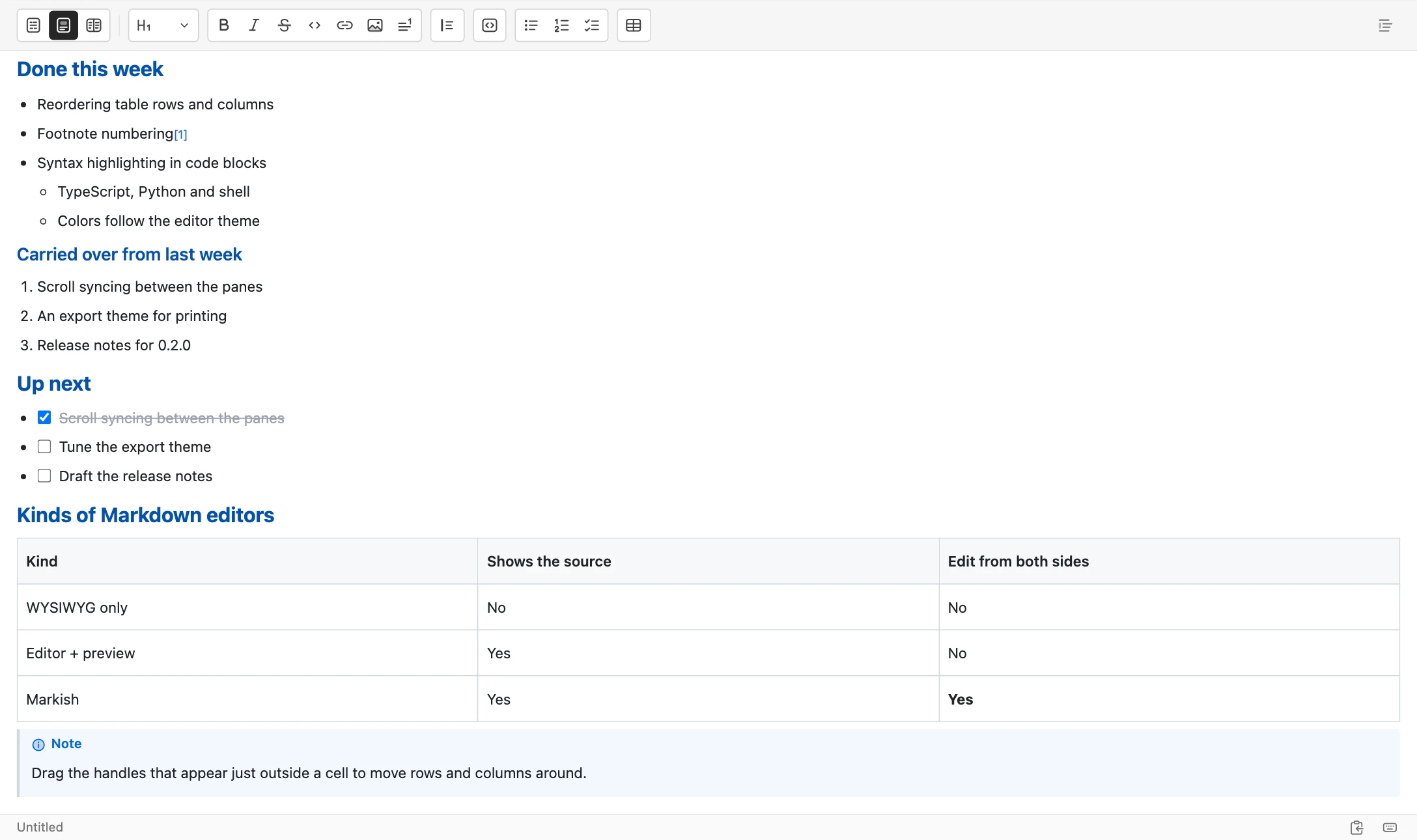
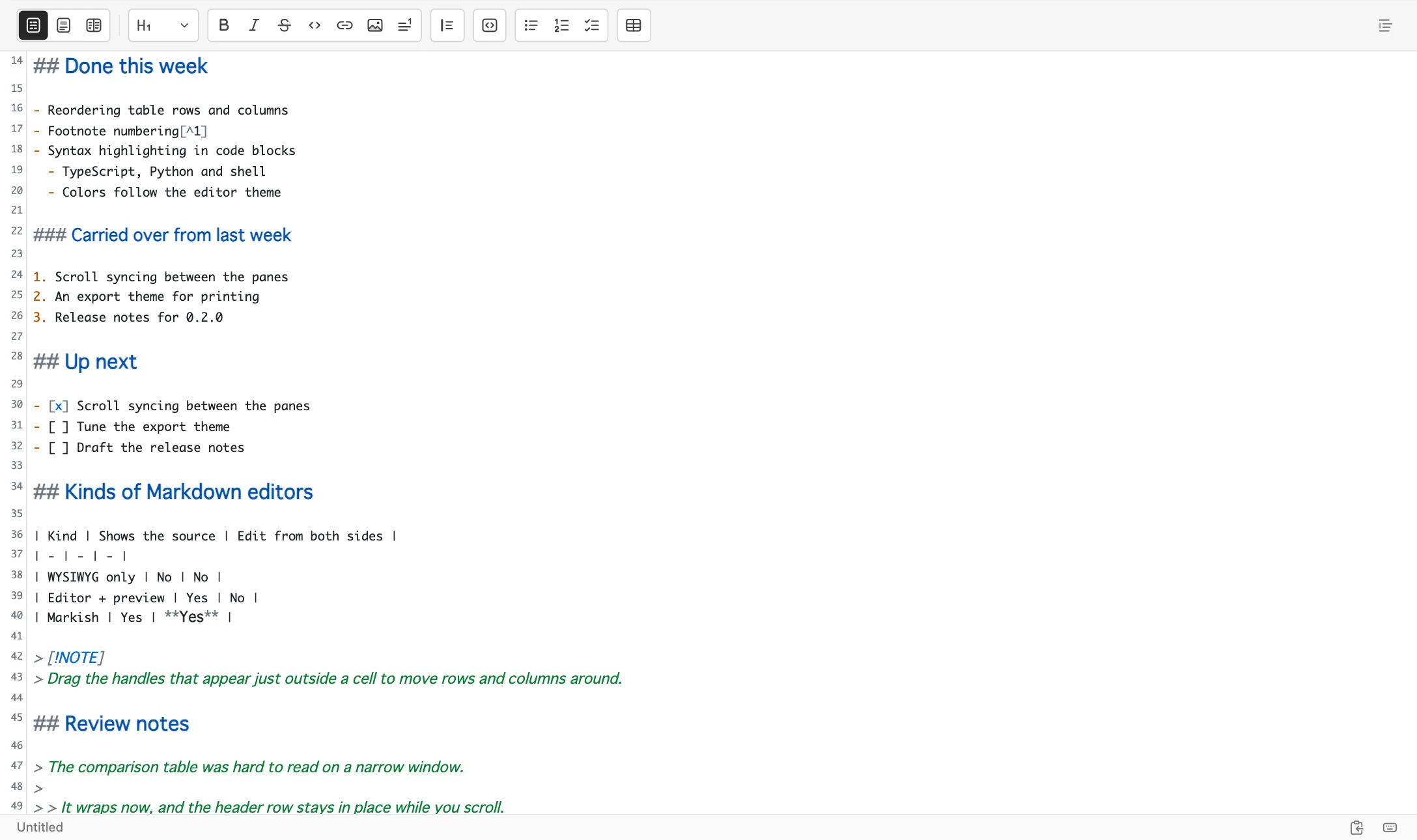
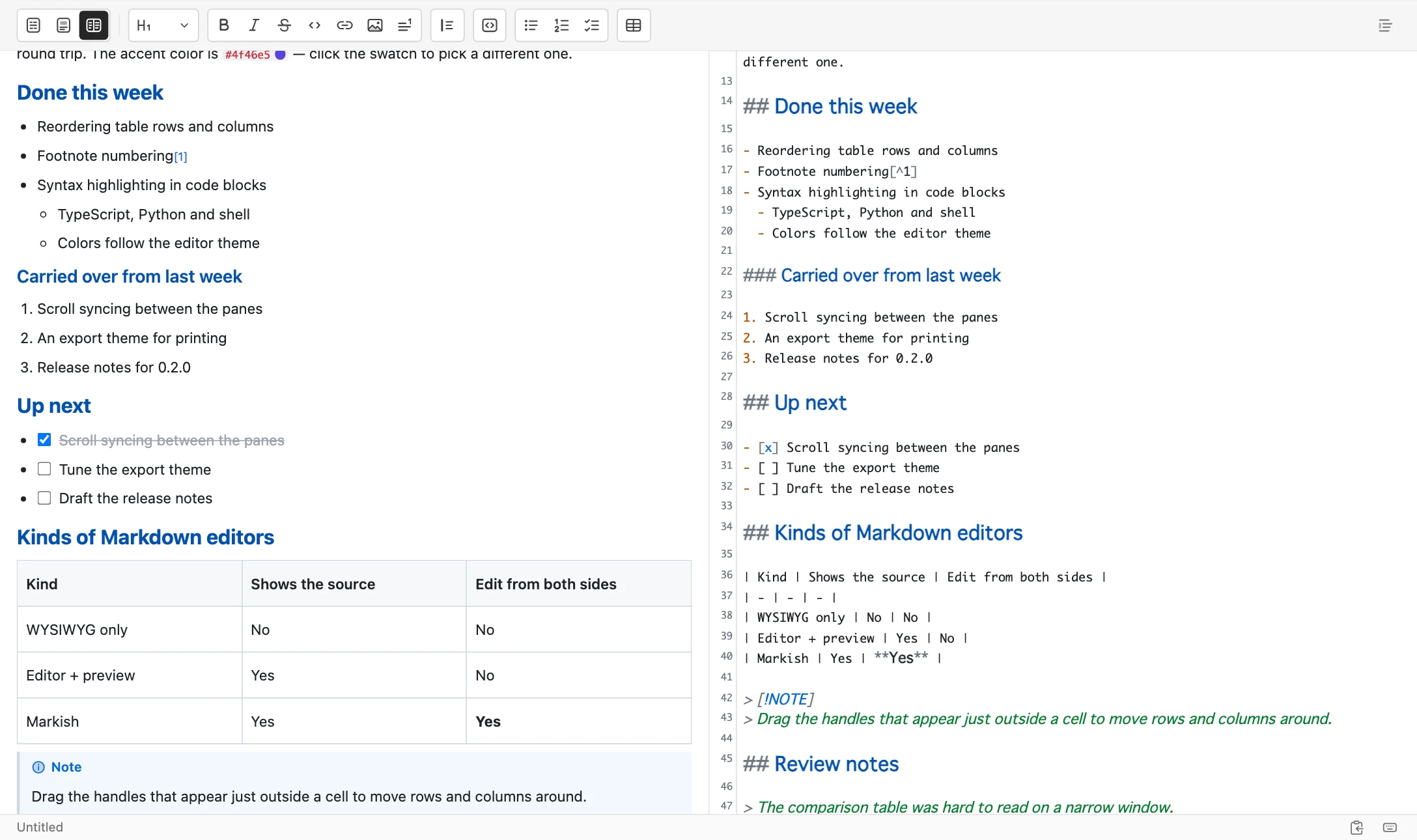
Mix and match the themes you like.
Sixteen themes are built in: 6 light and 10 dark. You can keep the visual editor light and the text editor dark, or any other combination.
If none of the sixteen fit, make your own. The visual editor takes CSS, down to the last detail. For the text editor you can set each color one by one: the background, the headings, the Markdown punctuation and the search highlight.
Visual Default Light / Source Tokyo Night
Writing
Just type Markdown and it formats itself.
Finish typing ## and it becomes a heading; - becomes a list. You can also format from the toolbar or with keyboard shortcuts.
- Headings, bullets, task lists and quotes take shape as you type them
- Bold and code spans, from a shortcut such as ⌘B or from the punctuation
- Bring images in by pasting or dropping them. You choose where they are saved
Tables
Even tables stop being a chore.
Adding one column normally means putting another | on every row and rewriting the --- separator to match. Edit it as a table and none of that is needed. You just type into the cells.
- Type
|||at the start of a line and press Enter for a three-column table. You can write the headers in as you go, like|Name|Qty| - From the toolbar, pick the size on a grid and insert it, then move between cells with Tab
- Rows and columns can be added or removed anywhere, not just at the end
- Reorder by dragging the handle that appears just outside the cells, up and down or left and right
- Set each column to align left, center or right
- Changing the number of columns never breaks the syntax in the source
Diagrams, math and code
Code, diagrams and math.
Edit Mermaid diagrams and math with a live preview in front of you. In the visual editor, you just click them.
- Click a diagram and a window opens with the source on the left and the preview on the right. The preview zooms and pans, so even a flowchart with many nodes lets you watch the part you are changing
- Click a block equation and the frame becomes an input field, with the KaTeX result appearing as you type
- Inline
$...$turns back into source when you arrow into it, and back into typeset math when you leave - It becomes math the moment you type the closing
$. Press Enter on a paragraph holding only$$to open the block math input - Code blocks are colored per language, and the button at the top right copies the whole block
- A color code such as
#4f46e5gets a swatch beside it; click it to pick a different color - Quotes start with
>, and writing[!NOTE]after it turns the quote into a colored callout. There are five kinds — note, tip, important, warning and caution — and you can also pick one next to the quote button in the toolbar
Working with documents
It handles specs thousands of lines long
Past a few thousand lines it is easy to lose track of where you are. The outline on the right lists every heading, so you can see the shape of the whole document and jump straight to the part you want.
- Jump to any heading from the outline on the right. Drag to resize it
- Find supports case sensitivity, whole words and regular expressions, and can replace everything at once
- Open several files in tabs, or split them across separate windows
- YAML front matter becomes a table of keys and values, so you can edit it without worrying about indentation
- Footnotes are numbered automatically, and inserting one in the middle renumbers the rest
Everything it does
Modes and sync
Edit either side
Change the document from whichever pane you are in
Live sync
What you type appears on the other side at once
Scroll sync
Both panes stay locked together, block by block
Switching keeps your place
Your cursor and scroll position survive the switch
Swap the panes
Flip the split-view layout with a click
Writing
Format as you type
Punctuation turns into the real thing the moment you finish it
Bold and italic
From the toolbar or from the syntax
Strikethrough
Strike it out while leaving it readable
Code spans
The caret behaves predictably at either edge
Link editing
Fix the display text and the URL where they sit
Footnotes
Your own labels, numbered automatically
Color swatches
A swatch beside #4f46e5; click to change it
Images
Paste or drop to bring them in, and edit the alt text
Structure
Headings
Switch between H1–H5 and body text in one click
Lists
Unordered, ordered and nested
Task lists
Tick the boxes of - [ ] where they sit
Quotes
Turn a whole selection into a quote
Callouts
GitHub-compatible NOTE / TIP from the toolbar
Horizontal rules
Type --- for a divider
Insert a table
Type ||| or pick the size from the toolbar
Rows and columns
Add, remove and reorder in any direction
Column alignment
Left, center or right, per column
Diagrams, math and code
Mermaid
Click to edit with the source and preview side by side
Zoom a diagram
Open it large in its own window to check it
Math (KaTeX)
Edit block and inline math where it sits
Syntax highlighting
Code blocks colored for each language
Copy a code block
One click from the top right of the block
Documents
Outline
Every heading listed; drag to resize
Find
Case sensitivity, whole words and regular expressions
Replace
One at a time or all at once
Tabs
Several files in one window
Multiple windows
Split them across the screen and work side by side
Front matter
Edit YAML as a table of keys and values
Output and appearance
Export to HTML
Code colors and diagrams come along
Export to PDF
Re-set with a theme meant for print
From your operating system's print dialog
Themes
Visual editor, text editor and window frame, separately
Custom CSS
Save your own colors as a preset
Fonts
Set the family and base size of your documents
Text editor display
Toggle line numbers, invisibles and the active line
Shortcut reference
Open it from the footer to see every key in one place
Files and input
Consistent syntax
Bullets and emphasis come out written the same way
CJK support
No clash with IME composition, and emphasis lands where you meant it
No account
Use it without signing in. What you write is never sent
What people write with it
READMEs and design notes
The more code blocks and diagrams a document has, the more it helps to see the source while you write. You can open these right inside VS Code too.
Runbooks and specs
Jump around from the outline even at a few thousand lines. Move the asides into footnotes, and export to PDF when it is time to hand it over.
Blog drafts
Front matter is a table, so you can fix tags and publication dates without breaking the indentation. Images come in by pasting.
Meeting and research notes
Decisions as task lists, comparisons as tables, formulas as real math. When you come back later, find them with a regular expression.
Available in 8 languages
- 日本語
- English
- 简体中文
- 繁體中文
- 한국어
- Deutsch
- Español
- Português (Brasil)
One-time purchase
US$19.99 one-time
The price in your local currency is set by the store for your account's country. There is no monthly charge.
- The desktop app and the VS Code extension are both included
- The purchase is tied to your Apple Account or Microsoft account, so there is no limit on how many of your devices use it
- Every feature is free for 30 days
Coming soon to the App Store and the Microsoft Store.
The Mac and Windows versions are separate purchases. The VS Code extension works only on the operating system you bought it for.
After 30 days you can have only one document open at a time, and HTML / PDF export, printing and the VS Code extension stop. Editing and saving what you have written is never restricted.
Every feature, free for 30 days
Coming soon to the App Store and the Microsoft Store.
Not sure? Try the demo first (no install) →
macOS / Windows · VS Code extension included · Free for 30 days
Frequently asked questions
Is there a web version?
No. There is a demo you can try in your browser, but it cannot open or save files. To actually use Markish, install the app.
Can I try it before buying?
Every feature is yours for 30 days. Getting it from the store is free, and starting the trial needs no sign-in and no card.
What happens to my documents after 30 days?
You can still edit and save them. Three things become limited: how many documents you can have open at once (one), HTML / PDF export and printing, and the VS Code extension. We will not hold your writing hostage.
If I buy it on a Mac, can I use it on Windows?
No. The App Store and the Microsoft Store handle payment entirely separately, and there is no way to confirm a purchase made in one from the other. To use both, buy it in each.
Is the VS Code extension sold separately?
It comes with the app. There is a step where you authorize it from the app before you start using it.
If you authorize it within six months of your purchase, you will be asked to press the button once more around the six-month mark. After that it works with no expiry.
I bought it. How do I switch VS Code over?
It does not switch over on its own. VS Code holds its own authorization, separate from the app, and the one issued during your trial stays as it is.
Click "Trial · N days left" at the bottom right of the editor. The app comes to the front; approve it there and you are back in VS Code in the purchased state. Running Markish: Authorize with the desktop app from the command palette does the same thing.
How do I edit Mermaid diagrams and math?
Click the diagram or the equation in the visual editor. Mermaid opens a window with the source and the preview side by side; math turns into an input field where it sits. Close it with Escape and the document is unchanged. You can also write both directly in the text editor.
Can I get a refund?
Refunds follow the App Store and Microsoft Store processes.
We cannot handle them ourselves, so please contact the App Store or the Microsoft Store.